If you are using ActiveCampaign’s native forms to collect new subscribers, ActiveCampaign will send them a confirmation email by default.
This is what the email looks like:

As you can see, the confirmation email could look more polished, and some of the language may confuse subscribers. For example, it’s asking if I want to confirm my subscription to Master Contact List. This is a label that makes sense internally but may mean little to a subscriber.
That wording appears because ActiveCampaign uses the list name in the email by default. You can make the list name more human-friendly.
But there are other options, namely:
- Edit the confirmation email
- Don’t send the confirmation email at all
Let’s take a look at how to implement each option.
Edit the confirmation email
To edit the confirmation email, first you need to find it. And it’s buried in the form action settings. Here are the steps to find it:
- Go to Website → Forms and click on Edit Form for the form in question
- In the right-hand sidebar, click on Options
- Click on the pencil icon next to Subscribe to a list

- Click on the Edit button next to Opt-in Email

- This will open the email editor, where you can change the email message.
If you don’t want to rename the list, replace the ‘%LISTNAME%’ placeholder with something your subscribers will understand and recognise.
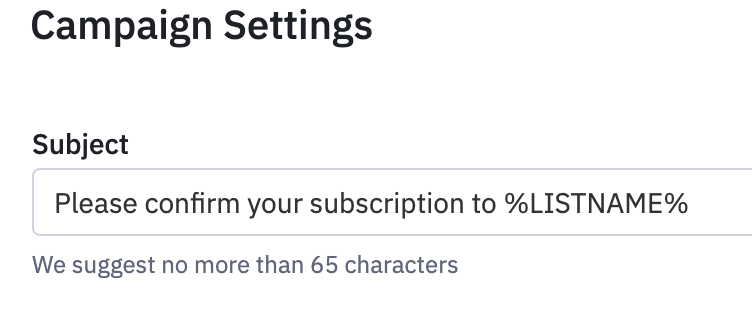
Change the subject line
If you want to change the subject line:
- Click on the gear icon

- Again, you can replace %LISTNAME% with something your readers will understand
Turn off the confirmation email
The other option is to turn off the confirmation email entirely. New subscribers will then be added to the list without being asked to confirm their subscription.
This may increase the number of people who subscribe, as you have removed one major friction point. However, if you choose this route, make sure you have a process for identifying and removing subscribers who are not engaging with your emails.
Go through the same steps as above to get to the form action settings.
Then toggle off Opt-in Confirmation.

The Opt-in Email settings will disappear.

Wrapping up
ActiveCampaign’s default confirmation emails may confuse new subscribers and reduce your conversion rate. You have two options:
- Edit the confirmation email
- Turn off the confirmation email
If you turn off the confirmation email, make sure you have a way to remove subscribers who aren’t engaging later.
Here’s my recommendation when deciding between the two options:
- If list quality and confirmed consent matter most, go with option 1 and edit the confirmation email
- If reducing sign-up friction matters most, go with option 2 and turn off the confirmation email, and use a follow-up process to remove subscribers who do not engage.
If you’d rather not set this up on your own, that’s what I do as an ActiveCampaign consultant.